
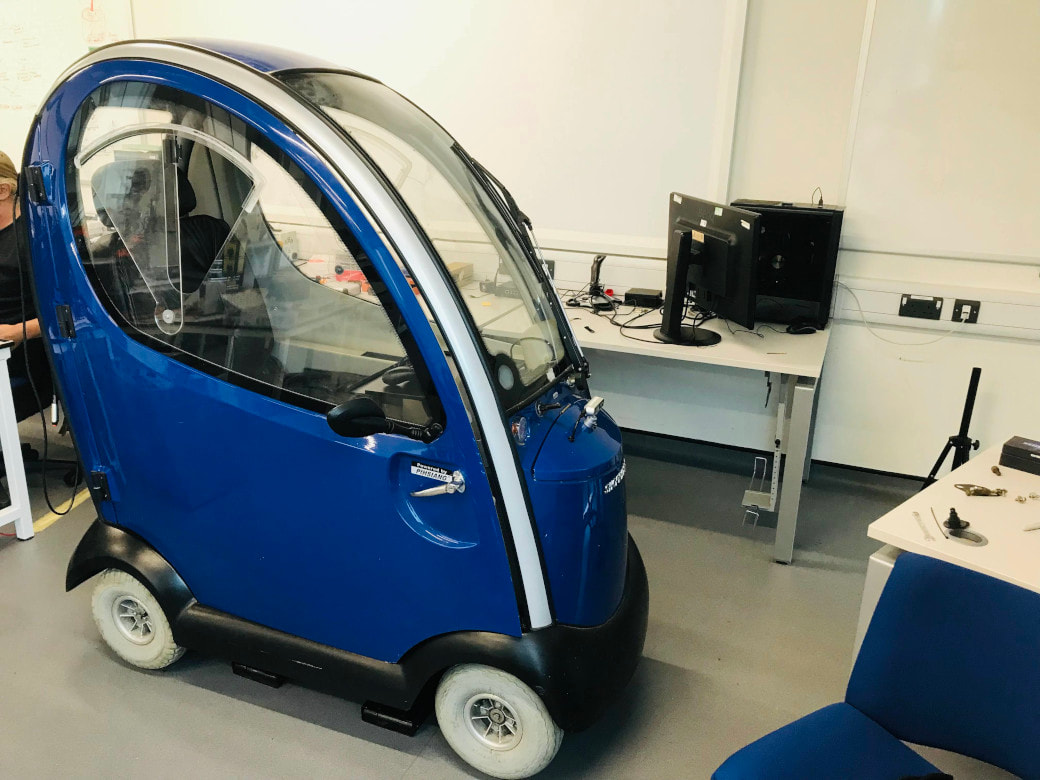
 OpenPodCar_2. View the project on GitHub.
Integrating different application stacks into one big system is an underrated task. It looks easy on paper, especially when the main system has been upgraded and very few references are available. Before you hit version-control issues, you need a clear understanding of the working structure and of how the stacks communicate.
These tasks are common in robotics, where there are four building blocks: perception, planning, decision making and control, each with key sub-parts that need attention. I ran into the same confusion during my research, part of which was to build the foundation (a custom ROS2 car-like vehicle) for autonomous vehicle research. I’ll explain the integration and the key concepts and keep it simple. Once you understand the structure, it is easy to upgrade, change or test the integration on different platforms. Let’s DIVE in.
Sensor selection and setup
Start with the robot setup, and make sure the URDF is correct. The first step for simultaneous localisation and mapping (SLAM) is choosing the sensor. My research project aimed to develop an open-source hardware and software autonomous vehicle platform. To keep it cost-effective, we chose Intel’s RGB-D sensor (the D435) instead of expensive LiDARs, accepting its limited range and field of view.
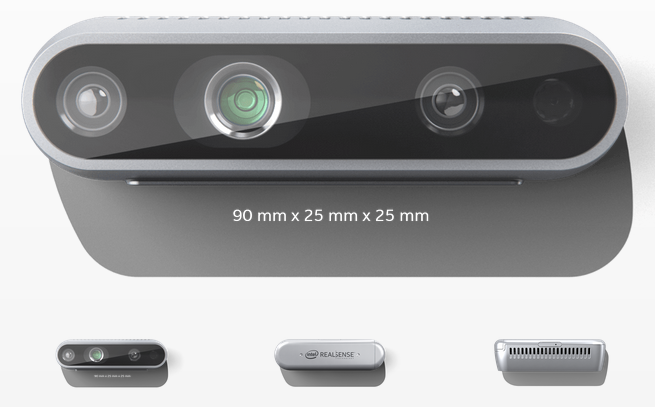 D435 specifications, from the official Intel RealSense page.
The D435 gives good depth accuracy up to about 5 m, with a minimum range of 0.3 m. Before going further, it helps to understand what data the sensor provides. I’ll assume you know how ROS works (publishing and subscribing to messages), so I’ll skip the basic RGB-D properties. The sensor provides the RGB image and the depth image (how far each point is from the sensor, in metres). You also need the camera’s intrinsic and extrinsic parameters. Fortunately, all of this arrives as ROS2 Image and CameraInfo messages from sensor_msgs, through the Intel RealSense ROS2 wrapper.
The installation instructions can be confusing, so I wrote a separate installation guide. Follow it step by step, then connect the camera over USB.
Note: Use a USB 3.0 port. On other ports the driver sometimes fails to stream data. I hit this issue myself, and Intel mentions it too.
Once the camera is connected, test the wrapper with the launch file:
ros2 launch realsense2_camera rs_launch.py
If everything is installed properly, this starts the camera node. The most important topics are the raw image, the depth image and the camera info. To check the node and its topics, run:
ros2 node info /camera/camera
If the wrapper is installed correctly, you will see output like this:
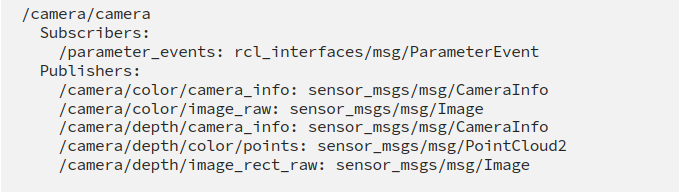
To view the images, open rqt, go to Plugins → Visualization → Image View, and select the topics you want. At this point the sensor is running and talking to ROS2.
Mounting the sensor on the robot
Next, mount the RGB-D sensor on the robot. This sounds straightforward, but it is one of the most important steps and one of the most error-prone. With a single sensor on the vehicle’s front bonnet, I followed these steps:
- Measure the Z coordinate: the height from the ground to the bonnet mount.
- From the centre of the vehicle (usually called
base_link), measure the X coordinate of the sensor mount. - If the sensor is offset to the left or right, measure the Y coordinate from
base_linkin the same way.
Note: these X, Y, Z coordinates are in the ROS/ROS2 coordinate frame (right-hand rule).
With the measurements in hand, create the sensor link (camera_link) in the robot’s URDF as a child of base_link. I keep things simple to avoid errors. The RealSense ROS2 wrapper already defines its own frames, so you don’t need to change much. The important one is the optical frame, which reports the frame the images are captured in and is already transformed to the main camera_link frame (in ROS coordinates). That is why I created camera_link as a child of base_link. Then create the joint between base_link and camera_link and put your measurements in the origin field of the joint:

This tells robot_state_publisher to publish the transform between camera_link and base_link. That completes the sensor setup on the physical vehicle, and the same setup works for the simulated version.
The mistake that cost me time
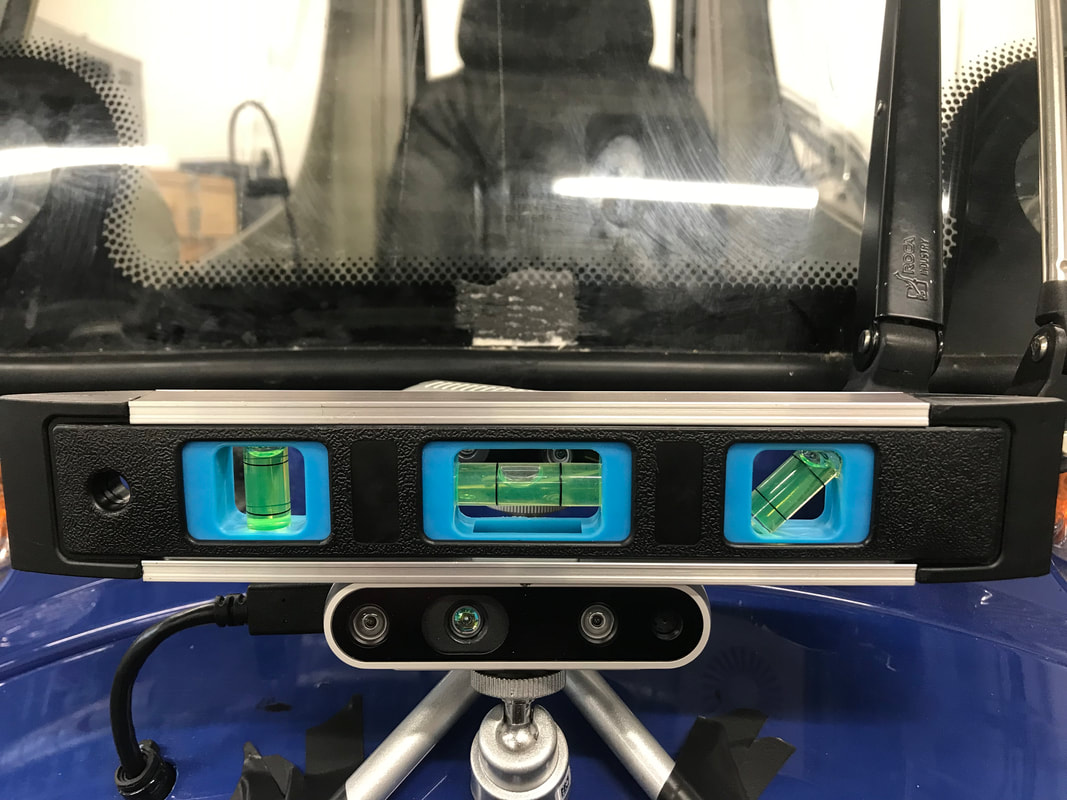
While setting up the RGB-D sensor for SLAM and NAV2, I hit a silly but common error that took a while to find. The camera must be mounted parallel to the ground. Otherwise localisation and mapping will be completely wrong, and you will see the robot jump back and forth in RViz. Check it with a spirit level:
More points to consider
For SLAM, the RGB-D sensor can output two kinds of data: a depth image and a PointCloud2. If you use the depth image, it must be the same size as the RGB image to avoid a size mismatch. The D435’s depth module has a wider field of view than its RGB camera. The ROS2 wrapper has arguments to align depth with the RGB image and to publish a point cloud:
ros2 launch realsense2_camera rs_launch.py align_depth.enable:=true pointcloud.enable:=true
Simultaneous localisation and mapping
OpenPodCar_2 has a single RGB-D camera. The standard slam_toolbox package is built around high-grade LiDARs, as the community pointed out when I asked about it. I tried running the RGB-D sensor with slam_toolbox and tuned many parameters, but the camera’s narrow angular field of view caused jumps during scan matching and broke the vehicle’s localisation.
To avoid this sensor mismatch, I tested RTAB-Map, a widely used visual SLAM package. RTAB-Map also offers RGB-D odometry, a visual odometry approach to estimating the robot’s pose. OpenPodCar_2 uses the single camera for both SLAM and visual odometry, as described below.
RTAB-Map odometry
RTAB-Map offers several ways to estimate odometry depending on the sensors on the platform. Mine was an RGB-D camera, so I used RTAB-Map’s pure RGB-D odometry. If you also have wheel encoders or LiDARs, there are ways to fuse them. Whatever the algorithm, the most important thing is to get it working with the simplest setup first.
The RGB-D odometry node subscribes to the RGB image, the depth image and the RGB camera info. Many parameters can be tuned for a specific setup. For my vehicle I adjusted:
Grid/RangeMinandGrid/RangeMax: the sensor range used for accurate estimation.publish_null_when_lost: false: avoids publishing null measurements.Reg/Force3DoF: true: publishes 2D odometry, since the platform is planar.subscribe_depth: true: subscribes to the incoming depth image. Change the topic names if yours differ.
RTAB-Map SLAM
RTAB-Map SLAM accepts several data sources: subscribe_depth, subscribe_scan (a LaserScan; when true, the depth subscription is skipped) and subscribe_cloud (a PointCloud2). I tested OpenPodCar_2 with all three. Because computing resources are limited, the default setup uses depth. The documentation covers every other parameter in detail. My current parameters are shown below.
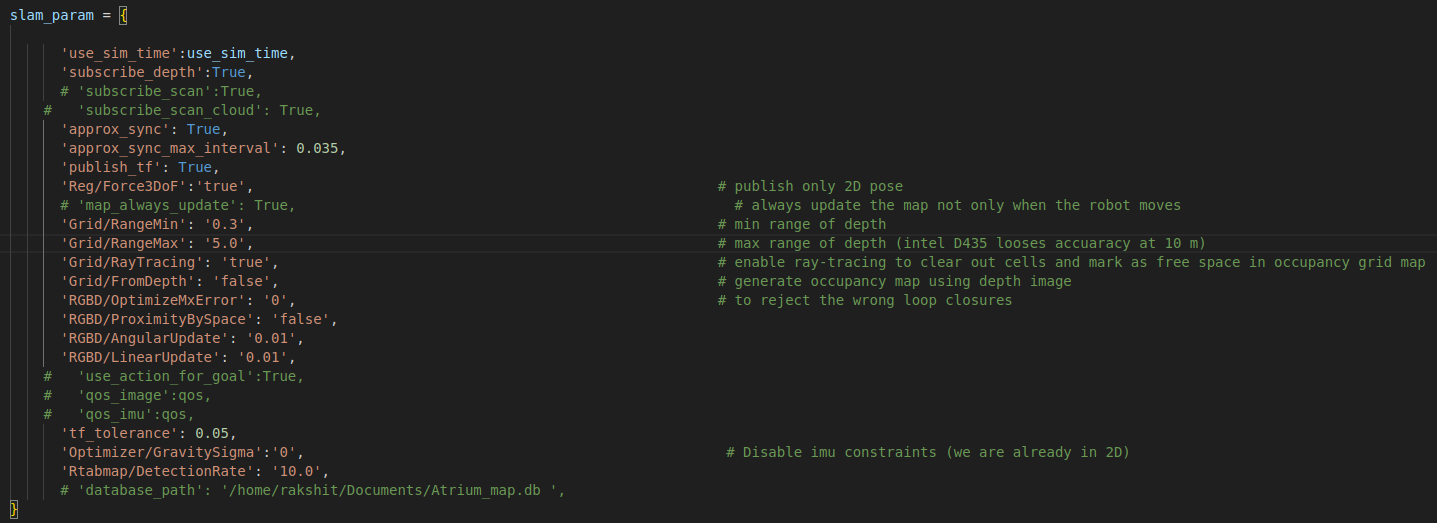
The only way to test it is to run it. You can launch the RGB-D odometry and SLAM nodes with RTAB-Map’s default launch files, but I recommend creating a separate package for your vehicle and keeping its launch files there. That makes integrating the full setup much easier later.
After building the package, launch in this order:
- The robot URDF.
- The
realsense2_cameranode, with the arguments above. - The RGB-D odometry and RTAB-Map SLAM nodes.
If everything works, you will see something like this in RViz2:
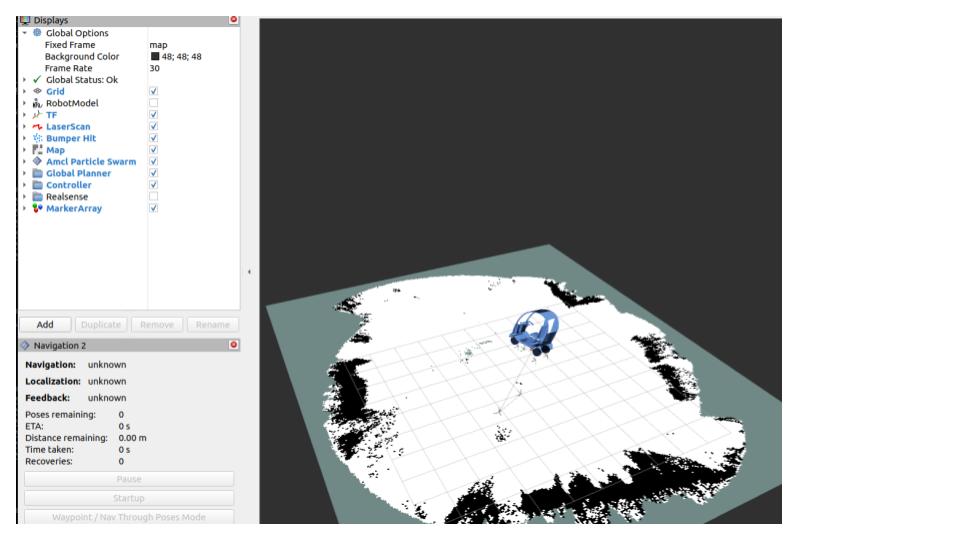 The area was mapped beforehand by manual teleoperation, using the camera’s 69° field of view.
The same setup has been tested in large indoor and outdoor areas, including loop closures, with reasonable mapping and localisation accuracy. For autonomous navigation alongside SLAM, launch the NAV2 stack and let the vehicle explore.
I’ve provided individual launch files so each sub-process is clear; you can combine them into a single launch file later. Here are more examples from RTAB-Map: a 3D map and the matching 2D occupancy grid.
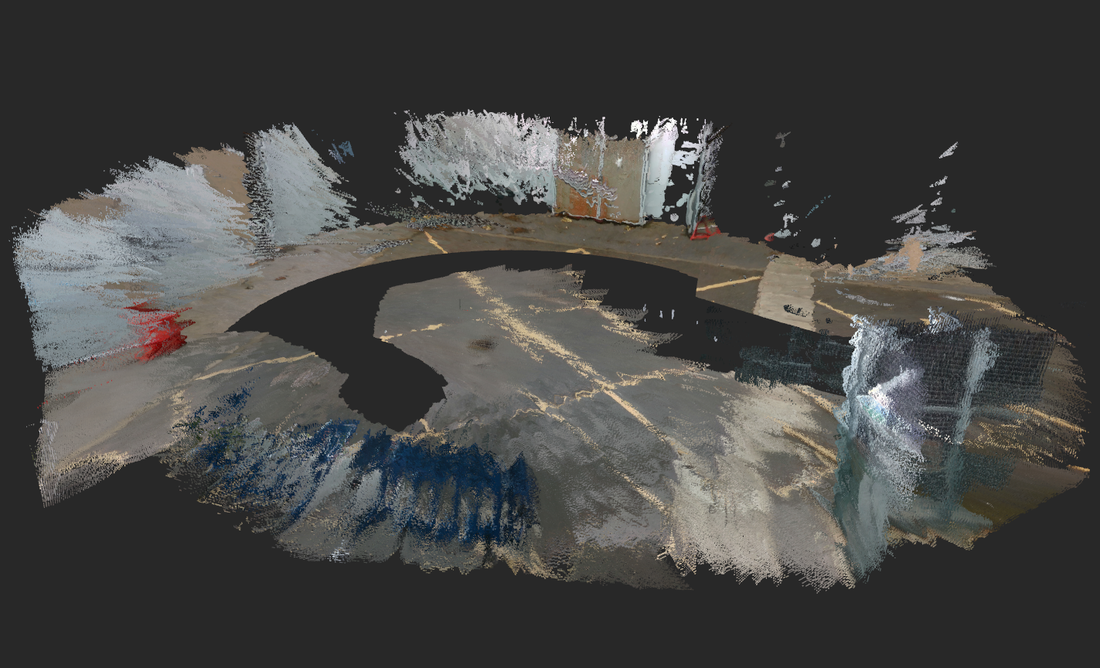
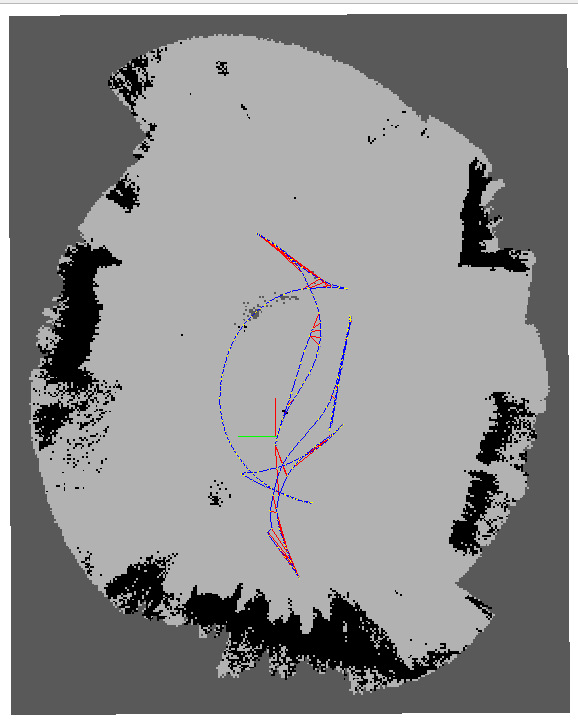
Code: github.com/Rak-r/OpenPodCar_V2
Conclusion
This guide integrates SLAM and the NAV2 stack using a single, inexpensive camera. The setup can be extended with other low-cost sensors such as wheel encoders or optical-flow sensors. If you have questions or suggestions, get in touch.