
This is the second post in my ROS2 series. Here I explain how to use simulation to test robots in a virtual environment. Robot Operating System and Gazebo have a long history of integration. With the arrival of ROS2, the Gazebo community redesigned its simulator, which can now build and test robots even without ROS. Still, ROS offers excellent applications and APIs for testing different stacks on top of an existing system.
To make things easier for users and developers, both communities support building and testing robots in simulation. Let’s DIVE in.
Gazebo Garden
Gazebo takes a new approach to simulation, with a full set of development libraries and cloud services. Developers can iterate quickly on physical designs in realistic 3D environments with high-fidelity sensor streams. It allows control strategies to be tested safely and simulation to be built into continuous-integration tests.
ROS2 integration
There are two usual ways to connect ROS2 and Gazebo. The first is to embed a ROS2 node directly inside Gazebo by writing a custom C/C++ plugin, which is useful for applications specific to your robot platform. The second, new with ROS2, is the ros_gz_bridge package. It creates a communication bridge between ROS2 interface messages and Gazebo (Ignition) protobuf messages. Most ROS2 message types are already bridged; the only limitation is that for very unusual or highly specific messages, it’s better to write a plugin or add the message to the bridge yourself.
Usage
Everything sounds simple when you’re reading about it, but it can be confusing to connect these small stacks into a single system with everything your robot needs. It comes down to setting the systems up together and understanding what you want your robot to do. Trust me, I built the stack from scratch and hit plenty of errors, but as they say, it’s the learning curve.
Don’t worry too much yet; I’ll explain each command. First, install the ros_gz_bridge package. If you use Gazebo Fortress, it installs automatically with Gazebo Sim. I strongly recommend visiting the Gazebo website to understand what you’ll be doing. These commands install Gazebo Garden (or whichever version is current):
sudo apt-get update
sudo apt-get install lsb-release wget gnupg
sudo wget https://packages.osrfoundation.org/gazebo.gpg -O /usr/share/keyrings/pkgs-osrf-archive-keyring.gpg
echo "deb [arch=$(dpkg --print-architecture) signed-by=/usr/share/keyrings/pkgs-osrf-archive-keyring.gpg] http://packages.osrfoundation.org/gazebo/ubuntu-stable $(lsb_release -cs) main" | sudo tee /etc/apt/sources.list.d/gazebo-stable.list > /dev/null
sudo apt-get update
sudo apt-get install gz-garden
Verify the installation by running gz sim in a terminal. To install another version, replace gz-garden in the last command with that version’s package name.
Starting Gazebo Sim with ROS2
To make any mobile robot move, in simulation or in the real world, it takes a standard ROS message called Twist on a default topic called /cmd_vel. Gazebo already provides robot models in SDF format for this. When I was working on this, there was very little information on using a URDF file instead of SDF, which I wanted so that I could keep a single robot model in a format ROS accepts.
Step 1: load a model
First, check that the ROS2 and Gazebo stack works by loading a pre-built robot SDF model:
gz sim ackermann_steering.sdf
The model appears in the Gazebo Sim window:
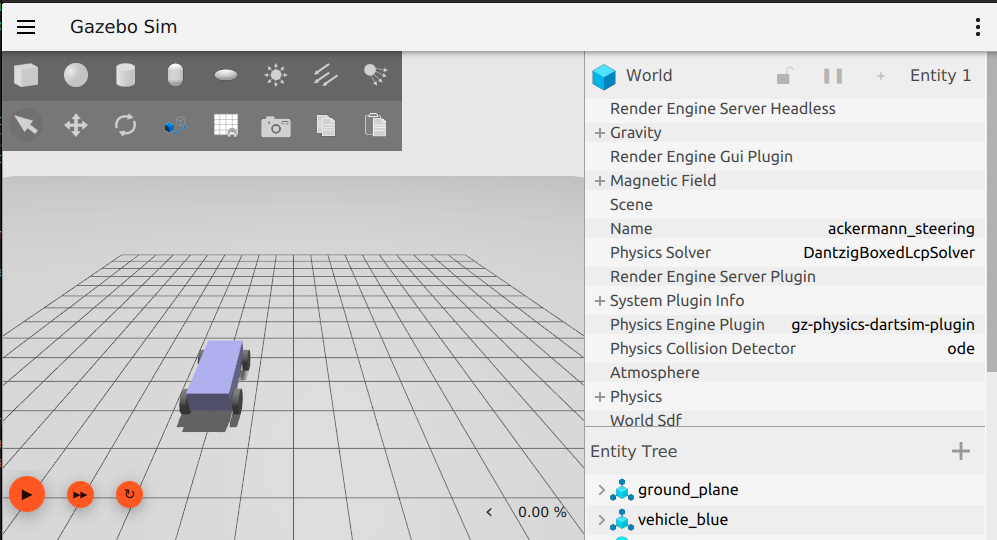 The simple Ackermann-steered model loaded in Gazebo.
I chose this kinematic model because Ackermann steering in simulation closely replicates a real car-like robot, which is useful for autonomous-vehicle research. The next question is how to control it. On a real robot this is the control layer; in simulation, Gazebo and similar tools provide the common controllers for testing. Ackermann-steered models had good planner support in ROS1. With ROS2, the ros_control package was heavily upgraded and supports differential-drive, mecanum, holonomic, omni-directional and tricycle controllers, but when I worked on this project it had no support for Ackermann-steered vehicles.
Luckily, the new Gazebo has a controller for this. A plugin controls the front-wheel steering joints, receives the standard ROS2 Twist message and converts it into Ackermann commands: a steering angle (in radians) and a speed (in m/s).
Step 2: inspect the Gazebo topics
With the world running, open a new terminal and run:
gz topic -l
This lists all Gazebo topics. As mentioned above, Gazebo uses its own (protobuf) message system, very similar to ROS. You’ll see these topics:
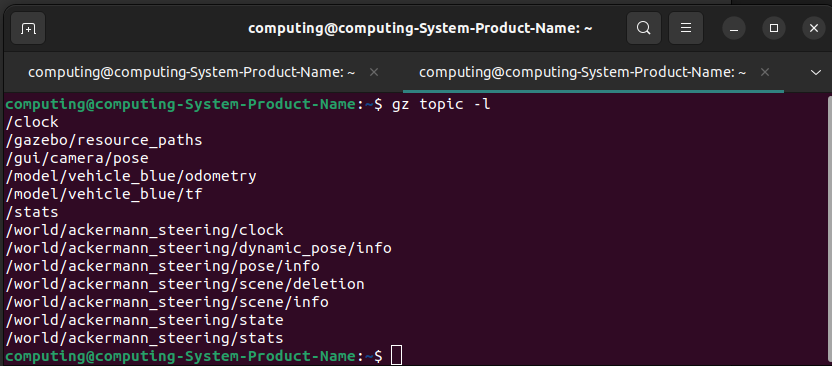
The most important ones are /model/vehicle_blue/odometry and /model/vehicle_blue/tf. To view a topic, just like echo in ROS, run:
gz topic -e -t /model/vehicle_blue/odometry
Step 3: bridge ROS2 and Gazebo
With the Gazebo side working, start the bridge between ROS2 and Gazebo.
Note: this is a demo to make clear what each command and package does. Try different commands from the Gazebo and ROS2 documentation yourself. Once you’re comfortable, it’s just a matter of putting everything in a launch file so you don’t have to open a new terminal every time.
Run the bridge with no arguments to see its usage:
ros2 run ros_gz_bridge parameter_bridge
The terminal shows how to set up the bridge:
@creates a bi-directional bridge.[sends messages from Gazebo to ROS.]sends messages from ROS to Gazebo.
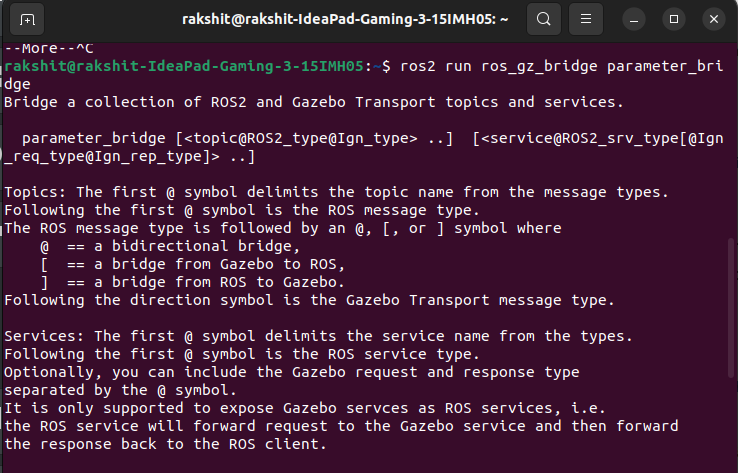 Output of the ros_gz_bridge node with instructions.
To drive the vehicle shown above, bridge the Twist message from ROS to Gazebo:
ros2 run ros_gz_bridge parameter_bridge /model/vehicle_blue/cmd_vel@geometry_msgs/msg/Twist]ignition.msgs.Twist
 Output of a successful ROS → Gazebo bridge.
This output confirms the bridge was created. If you get an error, double-check your Gazebo installation and remember to source your environment.
Once you’re familiar with these basics and what each package does, try the simple examples and launch files in the ros_gz_sim_demos repository and adapt them to your needs, as we’ll do in the next parts of this series.